
You want to use your vseebox v5 pro right now. This guide helps you with every step. The setup is easy to do. You do not need special skills to use this guide. Many people pick this device because it is easy to use. It lets you start fast and watch many channels.
Feature | VSeeBox V5 Pro |
|---|---|
Setup | Easy to use, plug-and-play |
Preinstalled Apps | Yes |
Technical Knowledge | You need very little |
Access to Content | Fast access to many channels |
Ideal User | People who are not tech experts |
Use this guide to have a good time with your device.
Key Takeaways
Take the Vseebox V5 Pro out of the box slowly. Look at all the items to see if anything is broken before you start. This helps you have a good setup.
Follow easy steps to plug your device into power and your TV. Use an HDMI cable to get the best picture.
Pick if you want to use wired or wireless internet. Wired internet is better for streaming because it is more stable.
Finish the first setup by doing what the screen tells you. Pick your language and log in to your account without trouble.
You can look at the user manual anytime if you need help. It shows you how to set up, fix problems, and use features.
Unboxing the Vseebox V5 Pro
Box Contents
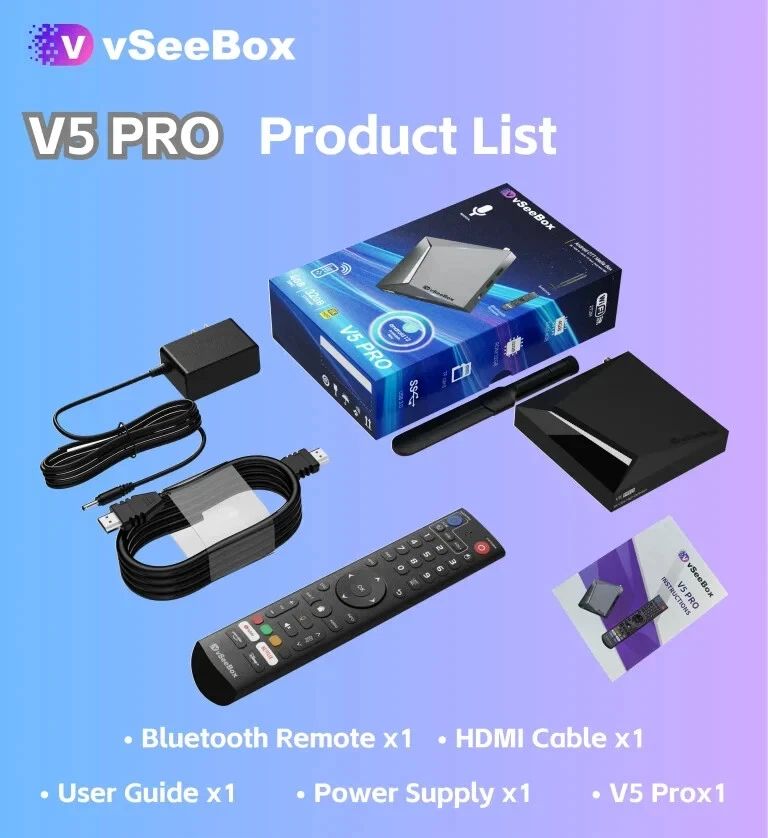
When you open your Vseebox V5 Pro box, you will find several important items inside. Each item helps you set up your device quickly. Take everything out of the box and place it on a flat surface. This way, you can see all the parts before you start.
Here is what you should find in the box:
Vseebox V5 Pro main unit
Remote control
Power adapter
HDMI cable
AV cable (for older TVs)
User manual
battery is not including (required Two AAA batteries for the remote)
Tip: Keep the box and packaging materials. You might need them if you move or want to store your device safely.
Check the list above and make sure you have every item. If something is missing, contact the seller or manufacturer right away.
Checking for Damage
Before you start setting up, you need to check each item for damage. Look at the Vseebox V5 Pro unit. Make sure there are no cracks or dents. Check the cables for any cuts or frayed ends. Inspect the remote control and see if the buttons work when you press them.
You can follow these steps:
Hold the main unit and look at all sides.
Gently shake the unit. You should not hear any loose parts inside.
Unwrap the cables and check for any visible damage.
Insert the batteries into the remote and press a few buttons to test them.
Note: If you find any damage, do not use the device. Contact customer support for help. Using a damaged device can cause more problems.
By checking your items now, you make sure your setup goes smoothly. You also protect your device from future issues.
How to Setup Vseebox V5 Pro
Setting up your vseebox v5 pro is simple. You can follow each step to get your device ready for use. This section will guide you through the setup procedure, from connecting cables to choosing your network.
Connecting Power and HDMI
Start by placing your vseebox v5 pro near your TV. Make sure you have easy access to a power outlet and the back of your TV. Take the power adapter from the box and plug it into the device. Connect the other end to a wall socket. Next, use the HDMI cable to link the vseebox v5 pro to your TV. Plug one end of the HDMI cable into the HDMI port on the device. Insert the other end into an available HDMI port on your TV.
If your TV does not have an HDMI port, you can use the AV cable instead. Plug the colored ends of the AV cable into the matching ports on both the device and your TV. This step completes the first part of the setup procedure.
Tip: Use the HDMI cable for the best picture and sound quality.
Selecting TV Input
After you connect the cables, turn on your TV. Use your TV remote to select the correct input source. Look for a button labeled "Input," "Source," or "AV." Press this button and choose the HDMI port or AV channel where you connected the vseebox v5 pro. You should see the device’s welcome screen. If you do not see it, double-check your cable connections and try again.
If your TV has more than one HDMI port, make sure you select the same one you used for the setup.
Ethernet and Wi-Fi Setup
You need to connect your vseebox v5 pro to the internet to access all its features. You can choose between an ethernet connection or a wi-fi connection. Both options are easy to set up.
To use a wired ethernet connection, follow these steps:
Plug an Ethernet cable into the Ethernet port on the vseebox v5 pro.
Connect the other end of the cable to your router.
The device will detect the wired connection and show an Ethernet icon on the screen.
A wired connection gives you a stable and fast internet speed. Many users prefer this option for streaming.
If you want to use a wi-fi connection, you can do so during the setup procedure. When the welcome screen appears, the device will prompt you to choose a network. Select your home Wi-Fi from the list. Enter your Wi-Fi password using the remote control. Wait for the device to confirm the connection. You will see a Wi-Fi icon on the screen when the connection is successful.
Note: A strong wi-fi connection helps you stream videos without buffering. Place your device close to your router for the best results.
You have now completed the main steps for how to setup your vseebox v5 pro. The setup procedure covers both wired and wireless options, so you can pick the one that works best for you.
Initial Setup and Configuration
After you finish the basic setup, your vseebox v5 pro will display the first screen. This part of the tutorial helps you complete the initial setup. You will see clear instructions on your TV. The guide below explains each step so you can start using your device quickly.
On-Screen Instructions
When you turn on the device, you will see a welcome message. The screen shows simple steps. You need to follow each prompt. The device asks you to choose your language. You use the remote control to move through the options. Select the language you prefer. The screen may also ask you to pick your region. This helps the device show the right channels and content.
Tip: If you make a mistake, you can go back and change your selection before you finish.
The on-screen instructions will guide you through the rest of the process. You may see a progress bar or checkmarks as you complete each step. The device makes it easy for you to understand what to do next.
Language and Account Sign-In
After you select your language, the device asks you to sign in to your account. You may need to enter your email address or phone number. Some users create a new account if they do not have one. The screen shows clear fields for your information. You use the remote to type in your details.
A table below shows what you need for account sign-in:
Step | What You Do |
|---|---|
Enter Email | Type your email address |
Create Password | Choose a secure password |
Confirm Details | Check your information |
Sign In | Press OK to continue |
You may also see options to sign in with a social media account. This can make the process faster. The device saves your settings so you do not need to sign in every time.
Note: Keep your account details safe. Write down your password if you think you might forget it.
Software Updates
Your vseebox v5 pro keeps itself up to date. The device checks for new software automatically. You do not need to search for updates or install them by yourself. Updates arrive through over-the-air technology. This means your device gets new features and fixes without any extra steps.
The device receives automatic software updates.
Updates come through over-the-air (OTA) delivery.
You always get the latest features and improvements.
You may see a message on the screen when an update is ready. The device will ask you to confirm before it installs. Updates help your device run smoothly and stay secure. You should allow the device to update when prompted.
Tip: Do not turn off the device during an update. Wait until the process finishes.
The initial setup makes sure your device is ready for use. You follow the guide and complete each step. The tutorial covers language selection, account sign-in, and software updates. After you finish, you can explore all the features of your device.
Using Key Features
Navigating the Interface
When you turn on your vseebox v5 pro, you see a clean and easy-to-use home screen. The main menu lets you move between apps, settings, and live TV. You use the remote’s arrow keys to highlight what you want. Press the OK button to select it. The Android 12 system makes everything run smoothly. You can find your favorite apps, search for content, or open settings with just a few clicks.
Here is a table that shows the main features you can access from the home screen:
Feature | Description |
|---|---|
Watch shows and movies in stunning detail and color. | |
Android 12 | Enjoy fast speeds and smooth navigation. |
Upgraded Hardware | Open apps quickly and switch between them with ease. |
Enhanced Connectivity | Use HDMI 2.1, USB, Ethernet, and WiFi 6 for stable streaming. |
Smart Voice Control | Use Google Assistant to search or control your smart home. |
Automatic OTA Updates | Get new features and fixes automatically. |
Efficient H.265 Decoding | Stream videos smoothly with less internet use. |
Tip: If you want to search for something, press the microphone button on your remote and speak. The voice search is fast and accurate.
Saving Channels to Favorites
You can save channels you watch often to your favorites list. This makes it easy to find them later. To add a channel to favorites, highlight the channel in the guide. Press the star or heart button on your remote. The channel now appears in your favorites section. You can remove a channel from favorites by repeating the same steps.
Open the channel guide.
Highlight your favorite channel.
Press the star or heart button.
Check your favorites list for the channel.
This feature helps you organize your viewing and saves time.
Accessing the User Manual
If you need help, you can open the user manual right from the device. Go to the settings menu. Look for “Help” or “User Manual.” Select it with your remote. The manual gives you step-by-step instructions for setup, troubleshooting, and using all features. You can read tips, find answers, and learn more about your device.
Note: The user manual is always available, so you never have to worry if you forget a step from this guide.
You now know how to use the main features of your vseebox v5 pro. The simple interface, easy favorites, and built-in help make your experience better.
Troubleshooting and Tips
Common Issues
You may face some common problems when using your Vseebox V5 Pro. Most issues have simple solutions. If you have trouble connecting to the internet, follow these steps:
Visit https://test.vsee.com/connectivity to check your connection to the required servers.
Select Run Diagnostic to test if your device can reach the sites needed for streaming.
If you see all checkmarks, your connection works. If you see a failure, check your firewall settings. For corporate networks, ask your IT team to open the necessary ports. Make sure your firewall allows the Vseebox client and messaging services.
If you are not on a corporate network, save your log file and send it to help@vsee.com for support.
Tip: Restart your router and device if you still have problems. This often fixes most connection issues.
Optimizing Performance
You can keep your Vseebox V5 Pro running smoothly by following a few easy tips:
Place your device close to your Wi-Fi router for a stronger signal.
Use a wired Ethernet connection for the best streaming quality.
Close apps you are not using to free up memory.
Check for software updates in the settings menu. Updates can improve speed and fix bugs.
Remove unused apps to save storage space.
Action | Benefit |
|---|---|
Wired connection | Stable and fast streaming |
Regular updates | Latest features and security |
Close unused apps | Faster device performance |
Note: Keeping your device cool helps prevent slowdowns. Make sure air can flow around it.
Resetting the Device
If your device stops working or you want to start fresh, you can reset it to factory settings. Use your remote control to return to the Home Screen. Open the Settings menu. Go to "Device Preferences," then select "About." Choose "Factory reset" and confirm your choice. The device will erase all data and restart.
Steps to reset your Vseebox V5 Pro:
Return to the Home Screen.
Open Settings.
Select "Device Preferences."
Go to "About."
Choose "Factory reset" and confirm.
⚠️ Warning: A factory reset will erase all your apps and settings. Only use this option if you cannot fix your problem another way.
You can set up and enjoy your Vseebox V5 Pro with just a few simple steps:
Power on the device and install batteries in the remote.
Pair the remote by holding 'OK' and 'Vol-' until the light flashes.
Create and name your favorite channel categories.
Use voice commands for easy control.
Check the program guide to plan your viewing.
Explore more features in the user manual. If you have questions, helpful tips and support are always available. Enjoy your new device! 🎉
FAQ
How do you update the Vseebox V5 Pro?
The device checks for updates automatically. You see a message if an update is available. Follow the on-screen steps to install it. Do not turn off the device during the update.
Can you use Bluetooth devices with the Vseebox V5 Pro?
You can connect Bluetooth headphones, speakers, or keyboards. Go to Settings > Bluetooth. Turn on Bluetooth and select your device from the list.
What should you do if the remote stops working?
Check the batteries and replace them if needed.
Make sure nothing blocks the signal.
Pair the remote again by holding 'OK' and 'Vol-' until the light flashes.
How do you add more apps to the Vseebox V5 Pro?
Step | Action |
|---|---|
1 | Open the Google Play Store |
2 | Search for the app you want |
3 | Select and install the app |
You can find new apps easily.
See Also
Steps to Connect Your vSeeBox Remote to Your TV
vSeeBox Simplifies Streaming for All Users
Is vSeeBox Permitted in the United States and Beyond